|
|
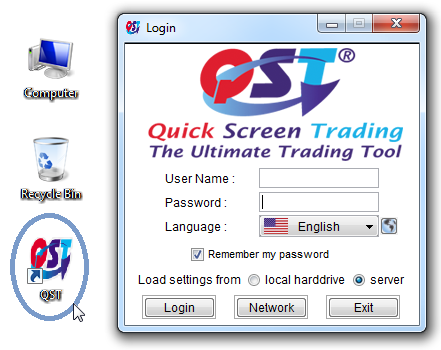
When you run the application by using the QST icon on your desktop, the Login dialog will be shown on your screen.
In order to make a successful login, you need to enter your User Name and Password (both case-sensitive), then press the Login button. Depending on your network's setup, sometimes, you may need to adjust the Network Settings as well.
If you enable the Remember my password option, your User Name and Password will be saved and next time when you open the application, you just need to press the Login button, without filling in your login credentials again. Not recommended for shared computers.
If you are not at your first login and you saved your settings before on our servers, on your computer or both, you will be able to load these settings by selecting one of the following options: Load settings from local harddrive or server before hitting the Login button.
|
|

You can also change the Language that will be used in the application by selecting an item from the Language list. If you want to add more languages to this list, you should press the  icon.
icon.
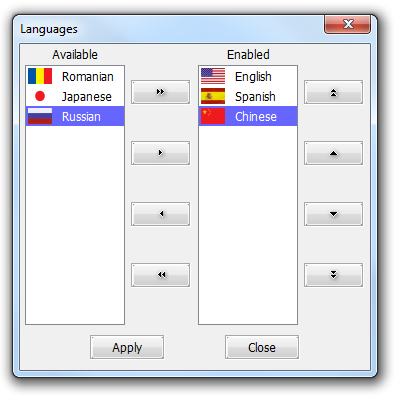
This will open the Languages dialog for you, which will show the Available languages and the Enabled ones. You can move them from the Available column to the Enabled one by using the  ,
,  ,
,  and
and  arrows or modify the order of the languages by using the
  , ,
, ,  and
and  arrows. When you are ready with these modifications, hit the Apply button. Please note that moving for the first time a language from Available to Enabled will trigger a download from our servers.
|
|
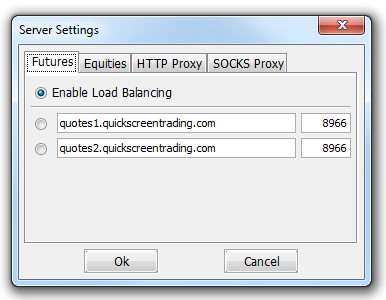
After you pressed the Network button, you will be redirected to the Server Settings dialog. The first (Futures) tab contains information about the IP / DNS address and port of servers. We use a compressed stream for a communication between your client and our servers. The advantage is that the data will be transferred in a compressed mode and the traffic on the Internet will be reduced. If Enable Load Balancing is checked, the application will select one of the servers below automatically, otherwise you have to select one of them. |
|
|
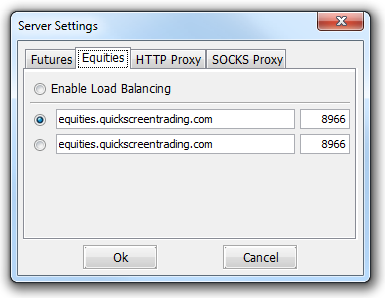
In the Equities tab, you can modify the IP or DNS address and port of Equities server.. If Enable Load Balancing is checked, the application will select one of the servers below automatically, otherwise you have to select one of them. |
|
|
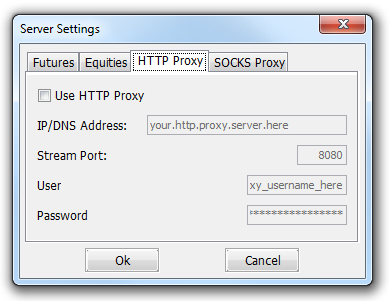
The HTTP Proxy settings will be entered here. Use this if you are using an HTTP Proxy Server for web traffic; please note that this setting concerns no other type or traffic than web content. In other words, you won't be able to connect to the main feed servers (configured on the Futures tab) through an HTTP(S) proxy, as we are using direct TCP connections. |
 |
|
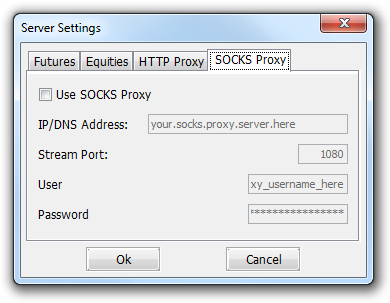
The SOCKS Proxy settings will be entered here. Use this if you are using a SOCKS Proxy Server. |
|
|
When you want to close the application, you can do it in one of two ways. If you Log Off from the application, you will be redirected to the Login screen. Selecting Exit will close off the application for good. |

|
|
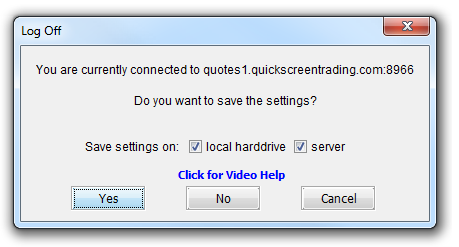
In order to Log Off from the application, you need to go to the main menu of the application and select Logout and Log Off. You can also press the Ctrl + L key combination. When you log off the application, you will be asked if you want to save your settings on your computer, on our servers or both. If you want to read more about saving your settings, please take a look at the Settings section. In order to see a video about how to log off the application and save your settings, please select Click for Video Help. |
|
|
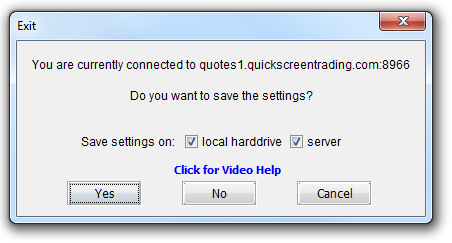
In order to Exit the application, you need to go to the main menu of the application and select Logout and Exit. You can also press the Ctrl + X key combination or the main close button of the application. When you exit the application, you will be asked if you want to save your settings on your computer, on our servers or both. If you want to read more about saving your settings, please take a look at the Settings section. In order to see a video about how to exit the application and save your settings, please select Click for Video Help. |
|